To assign an existing public SSH key, follow these steps:
- Follow Reseller > SSH keys.
- From the radio buttons at the top, make sure ‘Add existing SSH key’ is selected
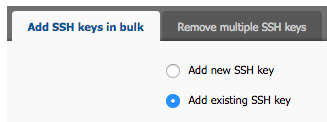
- Select the SSH key you are assigning.

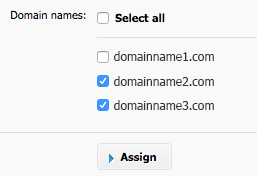
- Select the domain names the key will apply to.
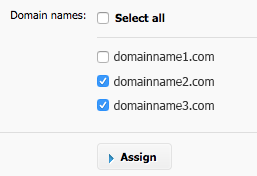
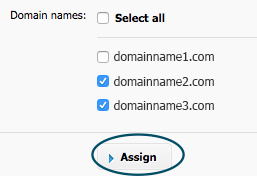
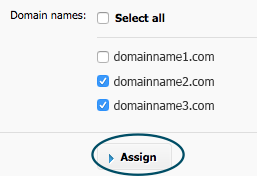
- Click on ‘Assign’.
To add and assign a public SSH key, follow these steps:
- Follow Reseller > SSH keys.
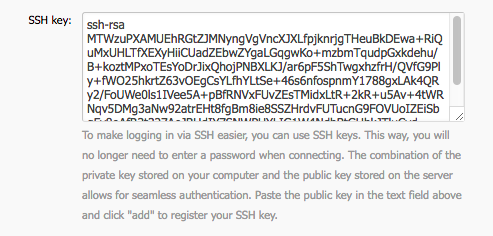
- From the radio buttons at the top, make sure ‘Add new SSH key’ is selected
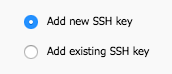
- Enter the new SSH key.
- Select the domain names the key will apply to.
- Click on ‘Assign’.
To disable an SSH key, follow these steps:
- Follow Reseller > SSH keys.
- Switch to the ‘Remove Multiple SSH keys’ tab

- Select a key you are removing

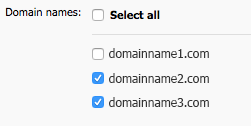
- Select domain names for which you are removing access
- Click on ‘Remove the SSH key of the selected accounts’
